Changes
Page history
added wingheadshark
authored
May 01, 2017
by
Villerius
Show whitespace changes
Inline
Side-by-side
Graphical.md
View page @
1021ea1b
...
@@ -6,6 +6,11 @@
...
@@ -6,6 +6,11 @@
*
This rivershark has xubuntu desktop installed and can be reach with RDP and SSH protocol.
*
This rivershark has xubuntu desktop installed and can be reach with RDP and SSH protocol.
*
RDP now supports continue sessions and copy and paste.
*
RDP now supports continue sessions and copy and paste.
*
A new blade server has been setup for use as a graphical login/submit node.
*
Hostname : wingheadshark
*
IP address : 145.88.66.103
----
----
## Remote Desktop Protocol (RDP) Howto
## Remote Desktop Protocol (RDP) Howto
...
@@ -17,7 +22,7 @@ Please use a different source port like: 1234
...
@@ -17,7 +22,7 @@ Please use a different source port like: 1234
#### Windows
#### Windows
*
Open your Remote Desktop Connection Client
*
Open your Remote Desktop Connection Client
*
fill in for computer name : 145.88.65.200
*
fill in for computer name :
145.88.66.103 or
145.88.65.200
*
Use your {researchlumc username} and password to login.
*
Use your {researchlumc username} and password to login.


...
@@ -29,7 +34,7 @@ Please use a different source port like: 1234
...
@@ -29,7 +34,7 @@ Please use a different source port like: 1234
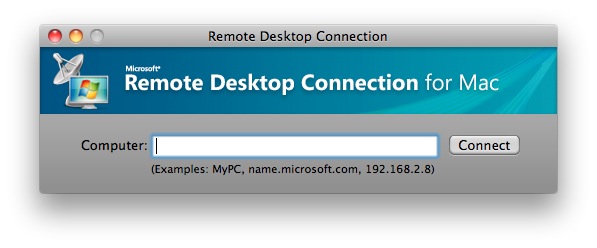
#### Mac OSX
#### Mac OSX
*
Use
[
RDC
](
http://www.microsoft.com/en-ca/download/details.aspx?id=18140
)
(
Remote
Desktop Connection Client for Mac 2)
*
Use
[
RDC
](
http://www.microsoft.com/en-ca/download/details.aspx?id=18140
)
(
Remote
Desktop Connection Client for Mac 2)
*
fill in for computer name : 145.88.65.200
*
fill in for computer name :
145.88.66.103 or
145.88.65.200

...
@@ -50,7 +55,7 @@ Please use a different source port like: 1234
...
@@ -50,7 +55,7 @@ Please use a different source port like: 1234
*
Use your {researchlumc username} and password to login.
*
Use your {researchlumc username} and password to login.
*
Command line version.
*
Command line version.
rdesktop -g 1920x1130 -u research-USERNAME -d researchlumc 145.88.6
5.200
rdesktop -g 1920x1130 -u research-USERNAME -d researchlumc 145.88.6
6.103
....................................... ^
....................................... ^
use here your own username !!!
use here your own username !!!
...
@@ -82,7 +87,7 @@ Please use a different source port like: 1234
...
@@ -82,7 +87,7 @@ Please use a different source port like: 1234
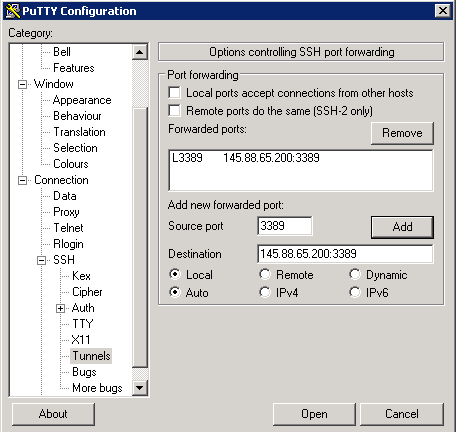
*
Next on the left side choose Category SSH, Tunnels
*
Next on the left side choose Category SSH, Tunnels
*
fill in like picture
*
fill in like picture
*
Source port : 3389
*
Source port : 3389
*
Destination : 145.88.6
5.200
:3389
*
Destination : 145.88.6
6.103
:3389
*
press Add
*
press Add

...
@@ -113,7 +118,7 @@ Please use a different source port like: 1234
...
@@ -113,7 +118,7 @@ Please use a different source port like: 1234
*
cd to a Directory where putty is installed
*
cd to a Directory where putty is installed
*
use this command:
*
use this command:
putty -L 3389:145.88.6
5.200
:3389 {researchlumc-USERNAME}@145.88.35.10
putty -L 3389:145.88.6
6.103
:3389 {researchlumc-USERNAME}@145.88.35.10
.......................................................^
.......................................................^
use here your own username !!!
use here your own username !!!
...
@@ -130,7 +135,7 @@ Please use a different source port like: 1234
...
@@ -130,7 +135,7 @@ Please use a different source port like: 1234

*
in the terminal type the following command:
*
in the terminal type the following command:
ssh {researchlumc-USERNAME}@145.88.35.10 -L 3389:145.88.6
5.200
:3389
ssh {researchlumc-USERNAME}@145.88.35.10 -L 3389:145.88.6
6.103
:3389
.......................................^
.......................................^
use here your own username !!!
use here your own username !!!
...
@@ -145,7 +150,7 @@ Please use a different source port like: 1234
...
@@ -145,7 +150,7 @@ Please use a different source port like: 1234
#### Mac
#### Mac
*
open your terminal and type in :
*
open your terminal and type in :
ssh -L 3389:145.88.6
5.200
:3389 145.88.35.10 -l researchlumc-USERNAME -N
ssh -L 3389:145.88.6
6.103
:3389 145.88.35.10 -l researchlumc-USERNAME -N
....................................................................^
....................................................................^
use here your own username !!!
use here your own username !!!
...
...
...
...
